Need For Speed: Carbon (PC)
A guide how to play Need For Speed: Carbon online on PC in 2026
Need For Speed: Carbon guide v 1.0
1. Download Game
To play online, you need an unmodified copy of Need for Speed: Carbon updated to version 1.4.
“Unmodified" means:
Not supported:
- New-car mods
- Car-replacement mods
- Overhaul mods (Mod V2, Ultimate Mod, Battle Royale, NFSCO, Improvement Mod V2, Endgame Mod, etc)
- Mods that affect vehicle performance, handling, progression, or game balance (Extended Customization, etc)
Supported:
- Texture replacements
- UI texture modifications
We don't provide links or information about where to get the game.
2. Registering at the website
1. Navigate to https://warehouse.games
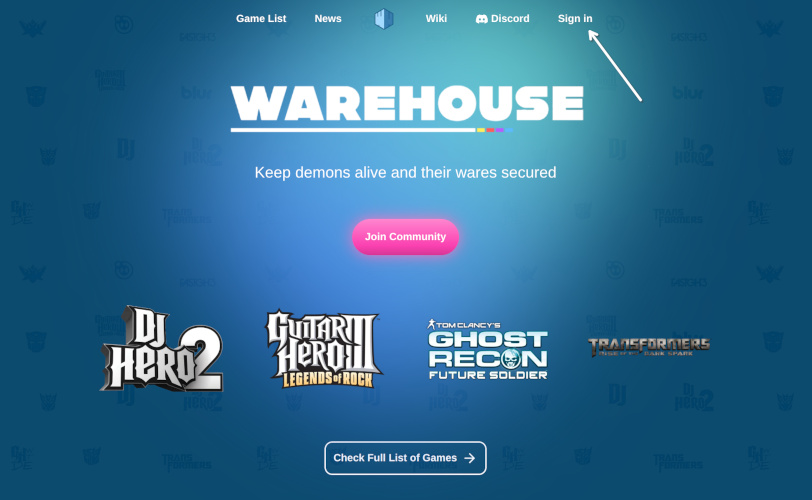
2. Click Sign in and create account via email. Alternatively you can use Discord.
3. After verifying your should be able to get into your profile.
3. Create in-game Need For Speed: Carbon account
1. Navigate to your profile
Navigate to your profile at https://warehouse.games/profile
2. Click “create account” on Need For Speed: Carbon card
3. Enter your future in-game name and password
4.1 WH Launcher method
The WH Launcher was made to simplify multiplayer installation and help keep your game updated. Plus it can show current players and sessions. That's pretty much it. I made it as a person who hates launchers, so, no invasive stuff like autorun on system start up and sitting in a tray.
1. Download and install WH Launcher
Navigate to https://warehouse.games/launcher or just click here
2. Launch the WH Launcher
On first start-up (or later in settings) you can link the launcher to your website profile, which will download all the necessary files automatically.
3. Locate Need For Speed: Carbon installation
In most cases this will be done automatically, if automated search fails - you can manually select the game folder on your PC.
4. Click “Update” button
This will download client files and add your multiplayer key.
If the launcher reports a permission error, close it and run it once as administrator. This may be necessary when the game is installed inside a protected folder such as
Program Files.
5. Click “Play”
Or launch the game by hand. It's up to you.
Skip 4.2 Manual method section if you used WH Launcher.
4.2 Manual method
If you opt for manual installation you would need to do some extra steps by hand.
1. Download client files
2. Put client files into the game folder
Possible locations:
C:\Games\Need for Speed Carbon\
C:\Program Files (x86)\Electronic Arts\Need for Speed Carbon\
In case you already have plugins folder with your own asi files - just merge and replace. If you don't know what asi files are - ignore this step.
3. Run the game
5. In-game
Just use the credential you made on step 3 to login.
Your website credentials and in-game credentials are separate unless the site indicates otherwise. Use the username and password created on the Need for Speed: Carbon profile card when signing in inside the game.
Have fun!
6. Extra features configuration
NFS Carbon WidescreenFix
WidescreenFix is included in client files, it's config file is located in /plugins/NFSCarbon.WidescreenFix.ini where you can edit graphical related stuff and some minor game fixes.
In-game ads
As a “fun factor” a support for in-game ads was added, which doesn't advertise anything real and included solely as a joke. This feature downloads a small amount of data while the game is running and replaces selected billboard textures with custom fictional advertisements. If you're not a fan of such thing you can disable it in /plugins/nfs-c-mad-client.ini by setting
enable_ads=false
If you don't see the file - launch game once and it will appear
Profanity filter
Since the original game lacks any kind of filter in lobbies we added one. If you're not afraid of such things and not a streamer you can disable it in /plugins/wh-nfs-c-client.ini
enable_profanity_filter=false
If you don't see the file - launch game once and it will appear
Troubleshooting
In case game doesn't launch, crash or you're struggling with any steps - join the Warehouse Discord server via invite link - https://discord.gg/fwkQmPGtfa and create a ticket via #support channel